Wassup in a Minute Template: CapCut or AI?
Last updated:
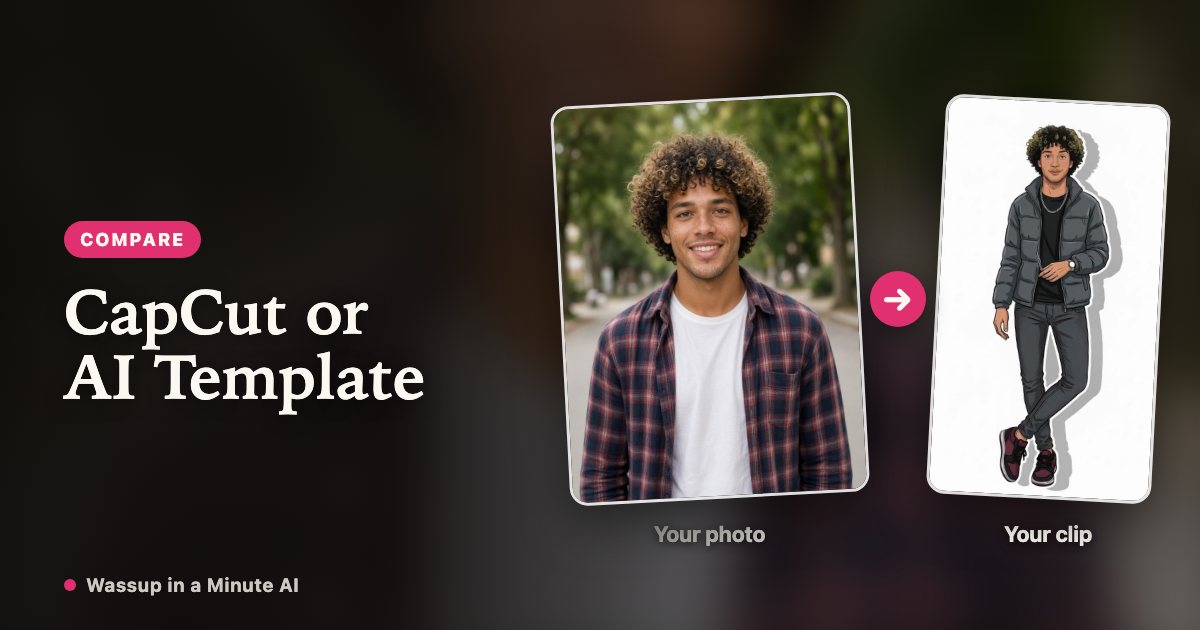
People use “template” for two different things here: an editing template you fill with your own footage, and a character template that an AI model follows. They need different inputs and give different results, so it helps to know which one you are after.
What people mean by a template
An editing template, usually in CapCut, gives you a preset timeline, cuts and effects. You bring the clip or artwork. A character template gives you a fixed pose and motion. You bring a photo, and AI does the rest. Know Your Meme records a CapCut tutorial among the posts that spread the trend, which is why so many searches mention it.
How to use the CapCut template (step by step)
This is the path most “Wassup in a Minute CapCut template” searches want. CapCut’s library changes by region and account type, so treat the search labels as starting points.
1. Open CapCut (phone or desktop) and go to Templates / search. Try “Wassup in a Minute”, “wassup”, or the exact name shown on a tutorial post you trust.
2. Open a template that matches the sway look (plain background, short loop). Preview it before you commit.
3. Tap Use / Edit and replace the placeholder clips or images with your own full-body footage or artwork. Keep framing head to toe when the template expects it.
4. Adjust timing if needed, then export. When you post, mute CapCut’s track if required and add the trend’s sound inside TikTok or Instagram so your video sits on that sound page.
CapCut template or AI template?
Neither is better across the board. It comes down to what you have to start with.
| Editing template | AI character template | |
|---|---|---|
| You provide | Your own footage or artwork | One full-body photo |
| Who does the movement | You, or your existing animation | The AI model, following the template |
| Editing skill | Some, depending on the template | None |
| Control | High: timing, cuts and effects | Lower: you choose the character and length |
| Cost | Depends on the app and template | 40 credits per video |
The character templates on Wassup in a Minute AI
Each one is a different pose and motion. Choose the one that suits your outfit and how you like to stand.
| Template | What you get |
|---|---|
| Real (3 templates) | Choose the Real tab and your real photo follows a real-person reference, with no redraw |
| Bold Anime (4 characters) | Redrawn with bright colours and bold lines |
| Anime: Classic Sway | Redrawn in a sketched sticker style with a loose side-to-side sway |
| Anime: Bench Lean | Redrawn as anime in a seated sway on a bench |
| Anime: Open Arm | Redrawn as anime, one arm out with an easy rock |
| Anime: Cross Step | Redrawn as anime, legs crossed with a slow sway |
How to use a character template
Choose the Anime or Real tab, pick a character if you are on Anime, upload a full-body photo, choose 4, 8 or 12 seconds and start the render. Longer lengths repeat the 4-second dance with music running across the whole clip. Most videos finish within a few minutes.
Which should you choose?
If you already have footage or artwork, or you enjoy editing, an editing template gives you more freedom. If you only have a photo and want a result today, a character template is the shorter route. Either way, add the trend’s sound inside the app when you post.
FAQ
Is there a free option?
There is no free allowance right now. Buy credits to generate a video; failed renders are refunded automatically.
Do I need CapCut to use your templates?
No. Everything happens in the browser, and you download a finished MP4.
Can I use a template with a character I drew?
Not in our generator, which takes a photo of one real adult with consent. An editing template is the better fit for your own artwork.
Your sway is one photo away
Make my sway